If you learn how to do layout on Instagram story, you can transform single photos into eye-catching collages that catch someone’s attention. Millions of people watch Stories daily, but most stick to basic single-image posts.
Here's the thing: layouts let you combine multiple photos in one frame. You can showcase before-and-after results, create product grids, or tell visual stories that grab attention.
I'll show you Instagram's built-in tools and design tricks that work right now. You'll learn exact dimensions, step-by-step methods, and engagement tactics.
Key Takeaways
-
Instagram story layouts combine multiple photos into a single frame to increase engagement and visual impact.
-
Use the Layout tool to quickly create grid-based collages with 2-6 photos in preset patterns.
-
Create custom layouts with Photo stickers for unlimited creative freedom and layering control.
-
Always respect the safe zone: keep text and important elements 250 pixels from the top and bottom edges.
-
Optimal dimensions are 1080 x 1920 pixels with a 9:16 aspect ratio for perfect display.
Instagram Story Layout Dimensions and Safe Zones

Proper dimensions create professional-looking layouts instead of cropped disasters. That said, the exact specs you need are:
-
Size: 1080 x 1920 pixels.
-
Aspect ratio: 9:16 (Vertical).
-
File format: JPG or PNG for images, MP4 for videos.
Now here's what most people miss: the safe zone. Instagram's interface covers parts of your story. The username sits at the top.
And reply bars and stickers appear at the bottom. Therefore, you need to keep important content away from these areas.
Pro Tip: Leave 250 pixels clear at the top and bottom.
It creates a safe content area of 1080 x 1420 pixels in the center. Place your text, logos, and key images here. Otherwise, Instagram's UI will cover them.
Think of it like a picture frame. The outer edges get hidden behind the frame. Your actual content lives in the middle section.
Stories that respect safe zones see higher engagement. That's because viewers can actually read your text and see your calls-to-action.
How to Do Layout on Instagram Story: Step-by-Step
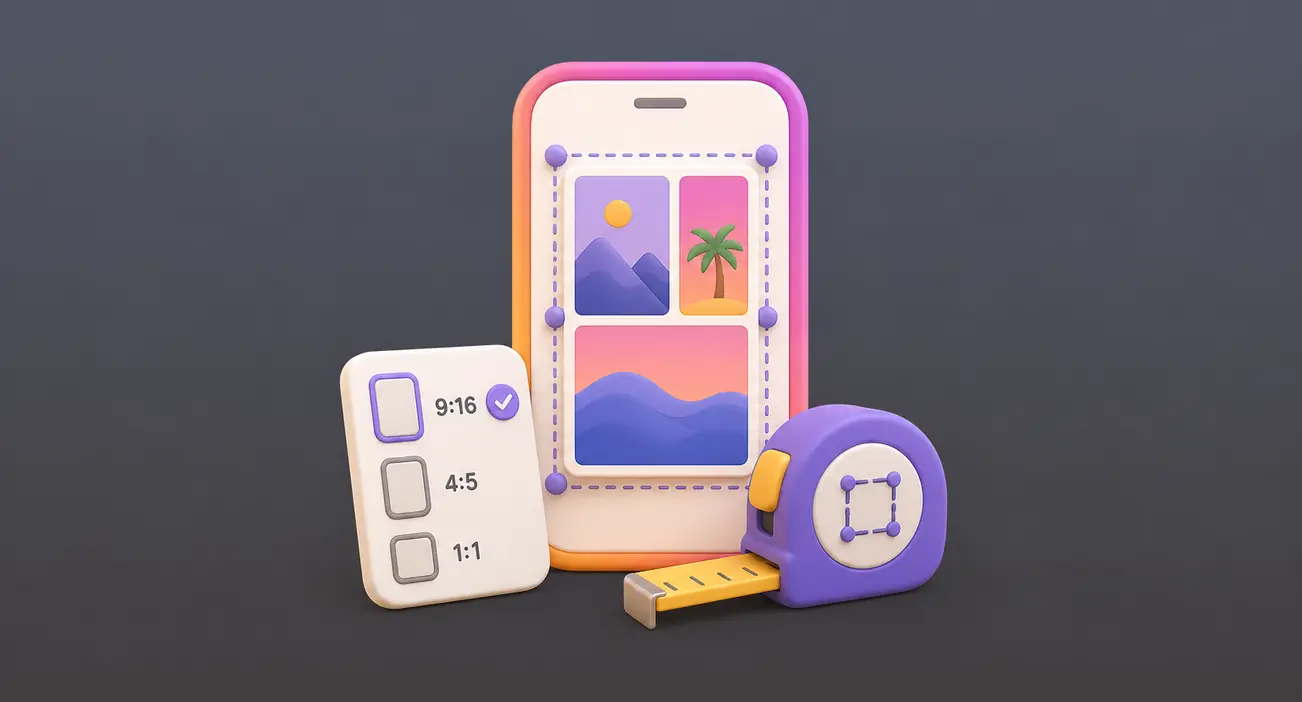
Instagram gives you a collage maker right inside the app. No downloads required. Here's exactly how to make a layout on Instagram Story:
-
1. Open your Instagram Stories camera.
-
2. Look at the left sidebar and tap the "Layout" icon.
-
3. Tap "Change grid" to browse different patterns.
-
4. Select your preferred grid (Options for 2-6 photos).
-
5. Add photos by tapping each section.
-
6. Choose from your gallery or snap new photos.
-
7. Tap the checkmark when done.
-
8. Post to your story.
The Layout tool works fast. You can create a grid in under 30 seconds.
It's great for:
-
Product showcases with multiple angles.
-
Before-and-after transformations.
-
Event highlights in one frame.
-
Quick daily recaps.
However, there are some limitations, such as:
-
Grids are rigid and preset.
-
All photos get equal sizing.
-
Limited creative freedom.
-
No layering options.
Additionally, you can't rotate individual photos or create overlapping effects. The tool keeps everything structured and uniform.
How to Do Layout on Instagram Story: Custom Layouts with Photo Stickers
Photo stickers unlock unlimited creative freedom for your layouts. The method lets you build exactly what you imagine.
-
1. Open the Instagram Stories camera.
-
2. Select the pen tool from the top menu.
-
3. Tap the sticker icon (Square smiley face).
-
4. Select "Photo" from the sticker menu.
-
5. Choose images from your gallery.
-
6. Repeat to add more photos.
-
7. Resize by pinching with two fingers.
-
8. Rotate by twisting with two fingers.
-
9. Drag photos to position them anywhere.
The approach gives you complete control. You can overlap images, create asymmetric designs, and layer elements however you want.
Design Tips
-
Start with one large background photo.
-
Add smaller photos on top as accents.
-
Leave some room between images.
-
Mix horizontal and vertical photos for variety.
You can also tag someone in an Instagram story by tapping the sticker icon and selecting the mention option. It works perfectly when showcasing collaborations in your custom layouts.
Use this method any time you want your layout to stand out from the grid-based standard.
Instagram Story Layout Design Best Practices
Small design choices separate amateur layouts from professional ones that drive real engagement.
1. Use 2-3 Brand Colors Maximum
Consistency builds recognition. Pick your core colors and stick with them across every layout you create.
Too many colors create visual chaos. Your audience won't remember your content when it looks different every time.
Match your color choices to your brand identity. Then, use those same shades in backgrounds, text, and accent elements throughout your stories.
2. Follow Typography Rules for Readability
Text size matters more than you think. Set your font to at least 42 pixels minimum for comfortable reading on small screens.
High contrast further improves visibility. Aim for a 4.5:1 ratio between your text and background colors, using dark text on light backgrounds or vice versa for the best results.
Consistency in fonts also matters. Stick to one or two typefaces across all your layouts, as using too many can make your design look unprofessional and scattered.
3. Create Visual Hierarchy
Not all text deserves equal attention. Use large headlines for your main message, medium sizes for supporting points, and small text for details.
Guide your viewer's eye intentionally. They should know exactly where to look first, second, and third within your layout.
Such a hierarchy helps people grasp your message in the three seconds they spend on each story frame.
4. Leave White Space
Empty space isn't wasted space. It gives your content room to breathe and makes layouts feel premium instead of cluttered.
A crowded layout causes cognitive overload. Your viewer's brain needs rest areas between focal points.
That said, balance is key. If one side feels heavy with images, balance it with emptiness on the other side.
5. Keep Important Elements Centered
Your key content belongs in the center third of your frame. It protects it from Instagram's interface overlays that appear at the edges.
Avoid placing text, logos, or calls-to-action in the top 250 pixels or bottom 250 pixels. These areas get covered by usernames, reply bars, and navigation elements.
So, mastering how to create a layout on Instagram story means understanding that technical placement matters just as much as creative vision.
Increase Engagement with Interactive Story Layouts
Layouts alone get views. Layouts with interactive elements get responses.
Instagram offers stickers that turn passive viewers into active participants. Combine these with your collages for maximum impact:
Poll Stickers Work Magic on Layouts
Add them directly onto your photo grids to get instant feedback. You can now offer 2-4 response options instead of just two.
Ask which product color they prefer. Let them vote on content ideas. Get opinions on design choices. People love sharing their thoughts with a single tap.
Question Stickers Spark Conversations
Layer them over your layouts to host AMA (Ask Me Anything) sessions. Your audience types their questions, and you respond with follow-up stories.
It creates a dialogue loop. You post a layout, they ask questions, you answer with more layouts. Engagement compounds quickly.
Buy Instagram Followers to Amplify Your Layout Engagement
Interactive layouts drive responses, but they work best when you have an active audience watching.
We offer a service to buy Instagram followers from real accounts with fast delivery, which gives your story layouts immediate reach. More followers mean more poll votes, question responses, and slider interactions on every layout you post.
Additionally, a larger audience provides social proof that attracts even more followers and encourages engagement with your content. It jumpstarts the engagement loop your layouts are designed to create.
Slider Stickers Gauge Sentiment
Let viewers rate products, experiences, or ideas on a sliding scale. It's low-effort for them and valuable data for you.
You can also use layouts to see memories on Instagram by creating throwback collages with old photos. Add a poll asking followers to guess which year the photos are from. Such a nostalgic approach drives both engagement and emotional connection.
Keep all interactive elements within your safe zone. Otherwise, Instagram's interface covers them, and people can't tap.
Stories with interactive features see higher completion rates. Your viewer watches the whole sequence instead of swiping away after one frame.
Conclusion
The process of mastering how to do layout on Instagram story doesn't require expensive apps or design degrees. You've got two powerful methods right inside Instagram: the Layout tool for quick grids and Photo stickers for creative freedom.
Start simple. Test the Layout tool today with a 2-photo grid. Once you're comfortable, experiment with Photo stickers for more control.
Remember your safe zones, 250 pixels top and bottom. Keep your text centered. Add interactive elements to boost responses.
Your next story layout is one tap away. Open Instagram and try what you just learned.
FAQs | Frequently Asked Questions
Can you add videos to Instagram story layouts?
Yes, you can include videos in your layouts using the Photo sticker method. Simply add a video from your gallery as a sticker, then layer it with other photos or videos.
The Layout tool only supports static images.
Can I showcase new followers in my story layouts?
Yes, you can create welcome collages by taking screenshots of new follower profiles and adding them to a layout. If you want to check who recently followed you, learn how to see someone's recent followers on Instagram through your followers list.
Then create a layout featuring their profile pictures with a welcome message to engage your growing community.
How do I save my Instagram story layout as a template?
Instagram doesn't offer built-in template saving, but you can take a screenshot of your finished layout before posting. Use that screenshot as a reference to recreate the same design structure for future stories.
Can I edit a story layout after posting it?
No, Instagram doesn't allow editing after you post a story. You'll need to delete the story and create a new one with your changes.
That's why previewing your layout carefully before posting saves time and frustration.