
How to Remove a Connection in LinkedIn and Organize Your Network
Find out how to remove a connection in LinkedIn in minutes. Learn the steps, what happens next, and ways to organize and expand your connections.

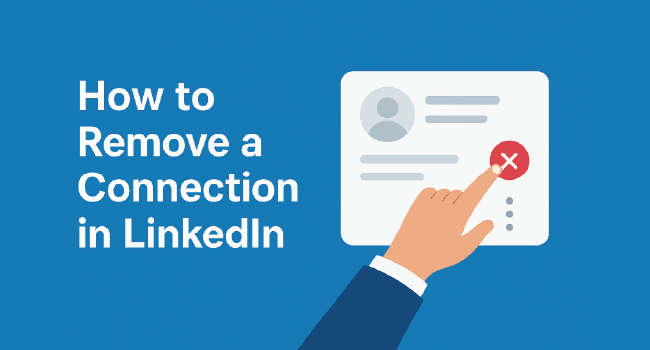
Knowing how to remove a connection in LinkedIn helps you keep your network clean, relevant, and focused on the people you actually interact with. In this guide, I’ll walk you through easy steps you can take on both desktop and mobile.
You’ll see what happens when you disconnect, how it affects recommendations or messages, and how to handle privacy concerns smoothly. By the end, you’ll feel confident about managing your LinkedIn relationships in a way that fits your professional goals.
How to Remove a Connection on Desktop
If you’re on a laptop or desktop, you can disconnect in just a few clicks:
Open LinkedIn and sign in.
Click My Network at the top of your homepage.
Choose Connections from the left-hand menu to see your list.
Find the person you want to remove, then click the More (•••) button next to their name.
Select Remove connection and confirm
This instantly takes them off your list and they won't get a notification
How to Remove a Connection on Mobile
On the LinkedIn app (iOS or Android) the steps look a little different:
Tap the search bar or go to My Network to find the person.
Tap on the Manage my network, then connections.
Open their profile and tap the More (•••) button under their picture.
Tap Remove connection and confirm.
You’ve now cleaned up your network right from your phone.
What Happens After You Remove Someone

When you click “Remove connection,” LinkedIn makes a few immediate changes:
-
No notification is sent. The other person won’t be alerted.
-
Endorsements and recommendations disappear. Anything you gave or received is withdrawn and not restored if you reconnect.
-
Messaging changes. You lose free 1st-degree messaging with them. Future contact may need InMail, Open Profile, or shared groups.
-
Feed updates stop. Their posts and comments no longer appear in your feed unless you follow them separately.
Alternatives to Removing a Connection
Sometimes you don’t need to completely cut ties. LinkedIn has a few lighter ways to manage what you see:
-
Unfollow. Stay connected but stop seeing their posts in your feed. Perfect when someone posts too often but you still want their contact info.
-
Mute. Temporarily hide their updates without removing or unfollowing them. This works well if someone is posting about a short-term event.
-
Remove follower. You can stop someone from following your updates without removing them as a connection. This helps when you want more privacy but keep access to their profile.
-
Block. The strongest action. They can’t view your profile, message you, or see your content.
After you’ve cleaned up your network, it’s the ideal time to strengthen it with the right people. You can buy LinkedIn followers from our service to instantly expand your reach with real, relevant professionals who are more likely to engage with your posts.
Combined with smart outreach and quality content, this gives you a stronger, more targeted network that actively supports your professional goals.
Conclusion
Managing your network is much easier once you know how to remove a connection in LinkedIn.
By following the steps above, you can clean up your contacts on both desktop and mobile, understand what happens afterward, and choose softer options like unfollowing or blocking when needed.
FAQs | Frequently Asked Questions
How can I showcase a new role or achievement on LinkedIn after a cleanup?
Once you’ve refined your network, focus on showing your achievements to the right people. You can add promotion on LinkedIn to update your profile with a new role or accomplishment, making it clear to recruiters and peers that you’re moving forward in your career.
What happens to endorsements and recommendations after I remove someone?
All endorsements and recommendations between you disappear and won’t return even if you reconnect later. This is a permanent change.
Can I remove someone without visiting their profile?
Yes. Go to My Network → Connections, find their name, click the More (•••) button, and select Remove connection. This lets you clean up quickly without opening each profile.
If I remove a connection on LinkedIn, will they know?
No. LinkedIn does not notify someone when you remove them. They’ll only notice if they try to view your profile or message you and see the connection is gone.