
How to Add Highlights on Instagram
Learn how to add highlights on Instagram from active or archived Stories, edit covers, reorder sections, and keep your favorite moments organized.

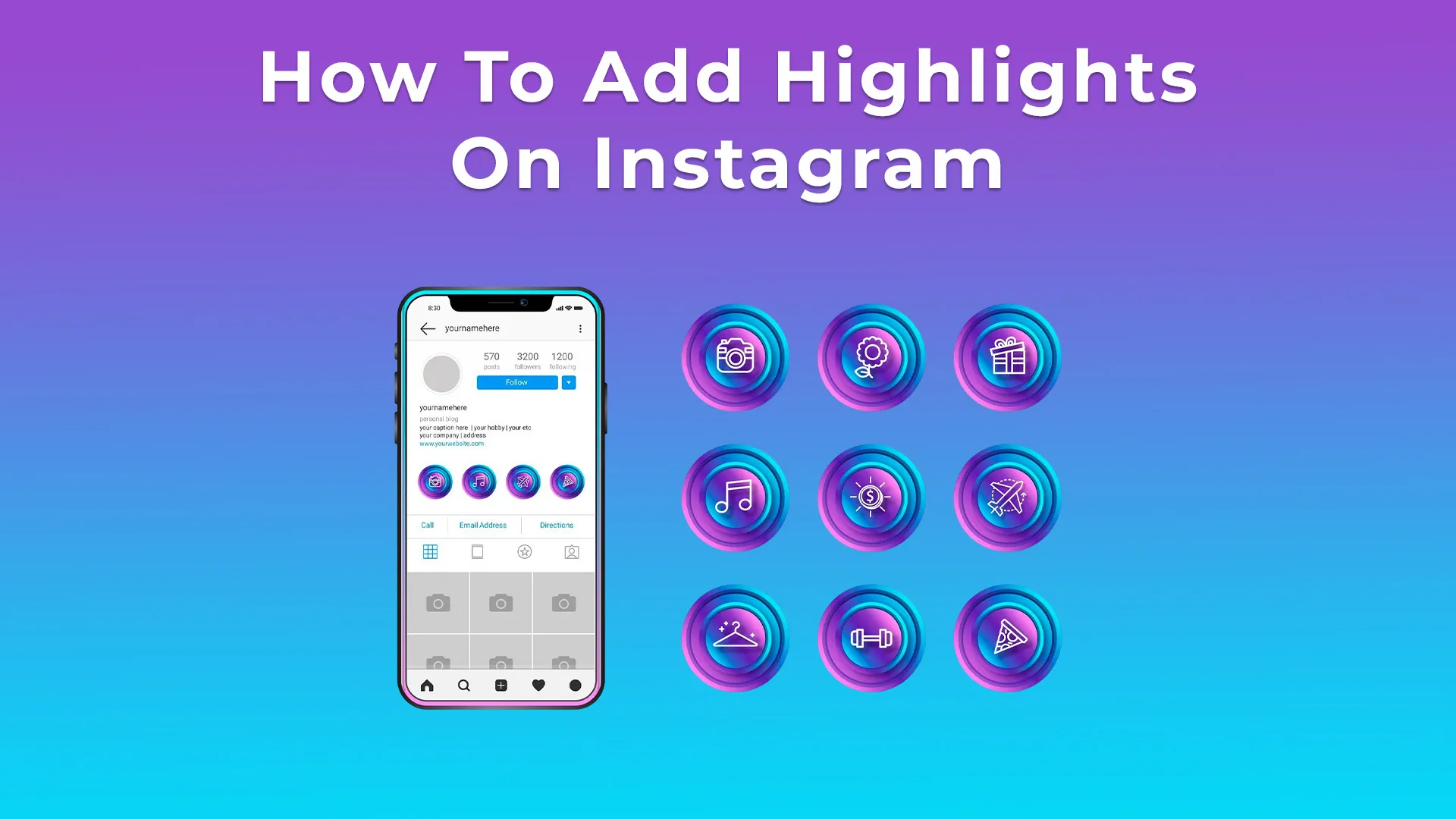
Knowing how to add highlights on Instagram helps you keep your favorite Stories right on your profile instead of watching them disappear after a day.
You can group your best travel snaps, product launches, or daily memories into organized circles under your bio. It’s another way of telling your story visually and making your page look more polished.
Key Takeaways
Before You Start: Check Your Story Archive
Before you start learning how to add highlights on Instagram, make sure your Stories are being saved automatically. Instagram now keeps your Stories in a private archive by default, but it's still worth double-checking, just in case you turned it off before.
Here's the quick way to confirm it:
Now every Story you post is automatically stored, visible only to you. From there, you can easily add any of them to Highlights whenever you want.
How to Add Highlights from an Active Story
If your Story is still live (within 24 hours), this is the fastest way to save it as a Highlight. Knowing how to add highlights on Instagram directly from an active Story lets you pin your favorite moments before they disappear.
Here's how to do it step-by-step:
Your Story now appears under your bio inside a circular Highlight. You can tap it anytime to view or edit it later.
Tip: You can keep updating the same Highlight whenever you share new Stories on a similar topic, like trips, products, or tutorials. It helps your page stay organized and keeps your favorite content visible long after the Story ends.
How to Add Highlights from Your Story Archive
If your Story has already expired, don't worry, you can still add it to a Highlight from your archive. This method works anytime and gives you full control over which moments to feature.
Learning how to add highlights on Instagram from your Story Archive is perfect for organizing older memories into clean, themed sections.
Here's how to do it:
That's it! Your new Highlight appears under your bio instantly. You can edit it anytime, add more Stories later, or remove ones that no longer fit the theme.
How to Edit and Manage Highlights
Once you know how to add highlights on Instagram, it’s easy to keep them fresh and organized. You can rename them, change their covers, or remove Stories you no longer want displayed, all in a few taps.
Here’s how to manage them:
Editing is unlimited, so you can keep your Highlights in check.
Once your Highlights are organized and your profile feels complete, the next step is visibility. A polished page already makes a great first impression, but when visitors also see a strong follower count, it instantly adds credibility and trust.
👉 We offer a reliable service where you can buy Instagram Followers from real, active accounts with fast delivery. This way, your profile doesn’t just look professional; it feels established too.
More followers mean more attention on your new Highlights and a better chance for your content to stand out in the crowd.
How to Reorder Highlights on Your Profile

Now that you know how to add highlights on Instagram, the next smart move is learning how to arrange them. Highlights appear in order of your most recent activity; the one you update last always moves to the front.
Instagram doesn't have a drag-and-drop feature for reordering, but there's a simple trick you can use. Here's how:
That quick update "refreshes" the Highlight and moves it to the front of your profile.
Tip: Keep your most important Highlights near the beginning. It helps new visitors see what matters most on your page without endless scrolling.
Highlight Cover Size and Setup Tips
Now it's time to make them look good. Your highlights covers acts like mini titles for your stories, they're the first thing people see when they visit your profile.
Instagram crops each cover into a circle, so design it with that shape in mind. To avoid awkward cuts, keep text or icons centered.
Here are a few size tips:
| Ratio | Ideal Use | Tip |
|---|---|---|
| 1080×1920 (9:16) | Great for full-screen visuals or themed Story covers | Keep your focus in the middle |
| 1080×1080 (1:1) | Best for icons, logos, or consistent branding | Use a clean background and bold symbols |
Visibility & Privacy for Instagram Highlights
After you've learned how to add highlights on Instagram, it's important to know who can actually see them. Every Highlight follows the same privacy rules as the original Story it came from, so you're always in control.
Here's what that means:
You don't need to change any extra settings for this to work. Instagram automatically keeps your privacy preferences consistent across Stories and Highlights.
Also, any stickers, mentions, or links you added to your original Stories remain fully active.
Conclusion
Now you know exactly how to add highlights on Instagram and keep your favorite Stories visible for as long as you like.
From setting up your archive to organizing covers and privacy settings, every step helps you build a profile that tells your story clearly.
Highlights give your followers one more way to explore who you are and what you share. Take a few minutes today to organize yours. A well-designed profile always leaves a lasting impression.
FAQs | Frequently Asked Questions
Can I add music to my Instagram Highlights?
Yes. When you add a Story that includes a music sticker, the song stays even after it becomes a Highlight. You can’t attach new music directly to existing Highlights, so remember to add it while posting your Story. It works the same way as when you learn how to add highlights on Instagram through regular Stories.
How many Highlights can I create?
Instagram doesn’t set a strict limit on the number of Highlights, but each one can include up to 100 Stories. Keeping fewer, well-organized Highlights makes your profile easier to explore.
Can I make Highlights without posting a Story first?
No, you can’t skip posting a Story entirely. Instagram only allows Highlights to come from Stories that have been shared. However, if you want to keep something private, you can post it to Close Friends or hide it from everyone, then save it as a Highlight. This method is what most people mean when asking how to put highlights on Instagram without a story.
How can I tell who views your Instagram highlights?
You can see a list of viewers for up to 48 hours after the Story goes live, even if it’s saved in a Highlight. After that period, Instagram only shows the total number of views, not the individual usernames.
Can I delete a Highlight without losing the original Stories?
Yes. Removing a Highlight won’t delete the Stories themselves; they’ll stay in your Archive. You can reuse or reorganize them into a new Highlight anytime.