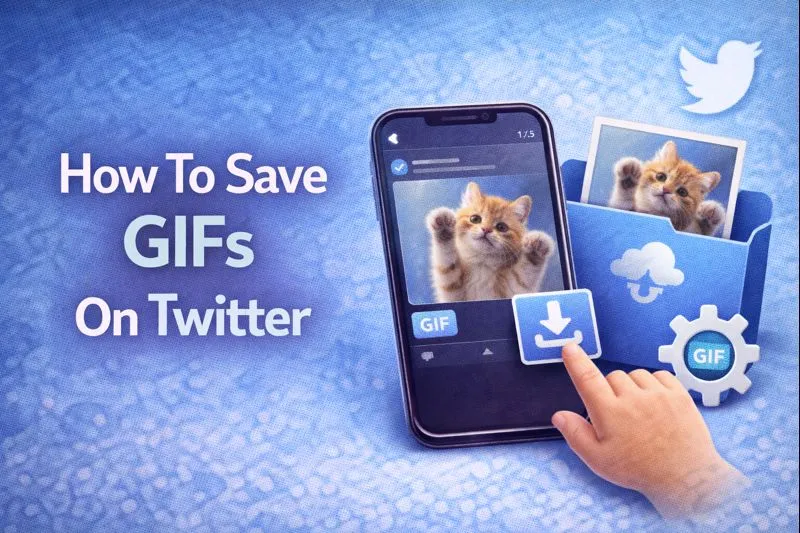
How to save GIFs on Twitter isn't as simple as right-clicking and downloading. Twitter doesn't offer a built-in GIF save button, which frustrates many users who want to keep perfect reaction clips or funny animations.
Here's the thing: you can still save any GIF you find on the platform. You'll need to use device-specific methods.
I'll walk you through practical solutions for iOS, Android, and desktop that actually work. Each method takes just a few minutes to set up.
Why Twitter GIFs Download as Videos (The Technical Reason)
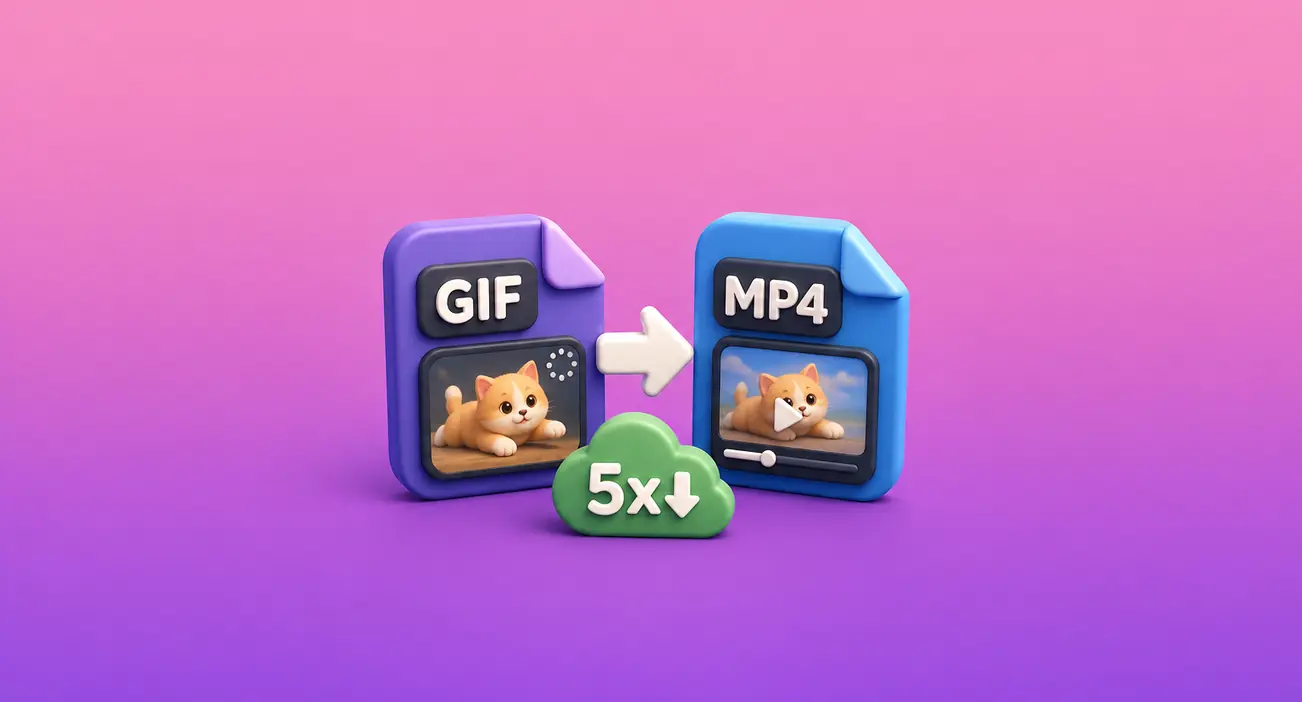
Twitter has been converting GIFs into MP4s. MP4 files are smaller than traditional GIF files, often achieving a 5x reduction in file size. A GIF that would normally be 500KB downloads as a 100KB MP4 instead.
Such a compression matters because it makes your Twitter feed load faster and uses less mobile data. However, it creates confusion when you try to download GIFs from Twitter. What you're actually saving is a short, looping MP4 video.
Most of the time, this doesn't matter. MP4 files work perfectly fine for sharing in messages, posting to other platforms, or keeping in your photo library. The video format loops automatically, just like a GIF would.
You only need to convert back to true GIF format in specific situations. Some messaging platforms require actual GIF files for stickers.
How to Save GIFs on Twitter Using Online Tools
Online tools work on any device with a web browser. You don't need to install anything, which makes this method quick and accessible. Popular and reliable options include TWDownload, Snaplytics, and EZGIF.
The process is straightforward across most tools:
-
1. Open Twitter and find the GIF you want to save.
-
2. Tap the "Share" icon below the tweet.
-
3. Select "Copy link" from the menu.
-
4. Open your chosen download tool in a browser.
-
5. Paste the tweet link into the input field.
-
6. Click the download button.
-
7. Select your preferred quality if multiple options appear.
-
8. Save the file to your device.
Most tools will give you an MP4 file. It works perfectly for most purposes. You can also use these tools while browsing in Twitter dark mode without any compatibility issues.
Exercise caution with unfamiliar websites. Avoid sites that bombard you with pop-up ads or request personal information.
Stick to tools with clean interfaces and good reviews. Avoid sites that redirect you, and try another tool if needed. Downloads usually take seconds, though larger GIFs may take longer.
Converting MP4 to GIF Format (If Needed)
Sometimes, you need an actual GIF file instead of an MP4. For example, messaging apps like Discord may require GIFs for custom stickers, older platforms might not support MP4 uploads, and some email clients display GIFs better than videos.
In these cases, EZGIF makes the conversion simple:
-
1. Visit the EZGIF website.
-
2. Click on "Video to GIF" in the menu.
-
3. Upload your downloaded MP4 file.
-
4. Adjust the frame rate and size if needed.
-
5. Click "Convert to GIF".
-
6. Download your new GIF file.
Keep in mind that file size typically increases after conversion. A 2MB MP4 might become an 8MB GIF. It happens because the GIF format is less efficient at compression. Therefore, only convert when you specifically need the GIF format for compatibility reasons.
Save Twitter GIFs on iOS (Two Methods)
Saving GIFs from Twitter on an iPhone can be frustrating. iOS restricts direct media downloads, and Twitter doesn’t offer a built-in option to save GIFs. Fortunately, there are two commonly used methods that work well on iOS.
Method 1: iOS Shortcuts (Recommended)
The method doesn't require installing any additional apps from the App Store. Instead, it uses Apple's built-in Shortcuts app, which comes preinstalled on most iPhones.
One-time setup:
-
1. Open Safari and visit RoutineHub.
-
2. Search for a Twitter media shortcut (For example, DTwitter).
-
3. Tap "Get Shortcut," then "Add Shortcut."
-
4. Apple may ask you to approve third-party shortcuts in your device settings.
How to use the shortcut:
-
1. Find the GIF you want to save on Twitter.
-
2. Tap "Share" and select "Copy Link."
-
3. Open the Shortcuts app.
-
4. Run your Twitter download shortcut.
-
5. The media saves to your Photos app.
Keep in mind that Twitter GIFs are actually stored as MP4 video files, so the saved file usually appears as a short video rather than a true GIF.
Setup takes only a couple of minutes and only needs to be done once. After that, you can save Twitter GIFs anytime without repeating the installation process.
Method 2: Dedicated Apps
If you prefer using a traditional app interface, dedicated apps provide an alternative.
Apps like GIFwrapped allow you to paste a tweet link and download the media directly. Simply install the app from the App Store, copy the tweet link, paste it into the app, and tap "Download."
Be aware that free versions often include advertisements or usage limits between downloads.
Download Twitter GIFs on Android Devices
Android makes downloading Twitter GIFs much easier than iOS. Several apps on the Google Play Store are designed specifically to save Twitter media and integrate directly with Android’s share menu.
Popular options include apps like Download Twitter Videos - GIF and Tweet2GIF. These apps work in a similar way, so it’s best to choose one with strong recent reviews and regular updates.
Typical download process:
-
1. Install your chosen app from the Google Play Store.
-
2. Open Twitter and find the GIF you want to save.
-
3. Tap the "Share" button below the tweet.
-
4. Select "Share via" from the menu.
-
5. Choose your Twitter download app.
-
6. Select quality options if prompted.
-
7. Tap "Download."
The media saves to your device’s gallery, usually as a short MP4 video, since Twitter GIFs are stored as video files rather than actual GIFs.
Most Android download apps integrate directly with Twitter’s share menu, which makes the process faster than copying and pasting links manually.
Key Features
Useful features to look for:
-
1. No watermarks on downloaded files.
-
2. Multiple quality options (Such as 480p, 720p, or 1080p).
-
3. Direct share-menu integration with Twitter.
-
4. Optional batch downloads for multiple files.
Some apps also offer limited browsing of public Twitter content without requiring a login, though this feature isn't always reliable and may change over time.
Free versions typically include occasional ads. Paid versions remove advertising and may add extra features, depending on the app.
Legal and Copyright Considerations
Downloaded content from Twitter remains protected by copyright law. Saving a GIF to your device does not transfer ownership.
Problems arise when you publicly repost downloaded content. So, always credit the original creator when sharing their work on social media.
👉 Speaking of sharing, if you want your own Twitter content to reach more people, we offer a service to buy Twitter shares from real accounts with fast delivery. It helps your tweets gain visibility organically while you focus on creating engaging content with the GIFs you've saved.
Commercial use requires permission from the owner. Using someone else’s GIF in ads or promotions without approval may break copyright laws. Contact the creator before using it for business purposes.
Twitter’s Terms of Service also govern how content can be used and shared. If you regularly save or repost Twitter GIFs publicly, it’s a good idea to review the current terms to stay compliant.
Some creators state their usage preferences in their bio. Respect these guidelines when you find them. Moreover, if you want to protect your own content, you can make your Twitter account private to limit who can access your GIFs.
Conclusion
If you learn how to save GIFs on Twitter, it gives you the freedom to build your own reaction library and share content across platforms. The method you choose depends mainly on your device and how often you download content.
iOS users benefit from the Shortcuts approach for its simplicity and privacy. Android users can take advantage of direct app integration with Twitter's share menu.
Remember that these GIFs save as MP4 files by default. Convert to true GIF format only when specific platforms require it. Most importantly, respect the creators behind the content you download and use their work responsibly.
FAQs | Frequently Asked Questions
Can I save GIFs from Twitter without any tools?
No, Twitter does not provide a native GIF download option. The platform intentionally excludes download buttons to keep users engaged on the site.
You'll need to use third-party solutions, such as online tools, mobile apps, or browser extensions, to save GIF content.
Are these download methods safe to use?
Exercise standard internet safety practices when using any third-party tool. Download tools from official app stores or well-reviewed websites. Check user ratings and recent reviews before installing anything.
Avoid sites that request unnecessary permissions or personal information beyond what's needed for the download function.
Will the original poster know I downloaded their GIF?
No, downloading GIFs happens anonymously. Twitter doesn't notify users when someone saves their content. The tweet author can see views, likes, and retweets, but downloads remain invisible.
You can even use Twitter search without an account in some tools to find and download content without logging in.
What quality setting should I choose when downloading?
Select the highest available resolution to maintain quality. Look for options labeled as 1080p or "HD" when the tool provides choices.
Higher-quality files take slightly longer to download but preserve the original GIF's visual clarity. Lower resolutions may appear pixelated or blurry.