
How to Add Promotion on LinkedIn (Desktop & Mobile Guide)
Learn how to add promotion on LinkedIn with clear desktop and mobile steps, privacy tips, and announcement ideas to make your career move stand out.

Starting a new role or moving up the ladder is exciting, and showing it online matters too. In this guide, you’ll learn how to add a promotion on LinkedIn step by step so your profile reflects your growth.
I’ll walk you through simple actions that make your update look polished on both desktop and mobile.
Key Takeaways

-
Use the "+ Add position" button under the same employer to show a real promotion instead of editing your old job.
-
Toggle "Notify network" on or off to control when people see your update and time your announcement.
-
Consider writing your own post or using "Celebrate an occasion → New position" to make your news personal and engaging.
-
Refresh your headline, About section, and skills to reflect your new role and keep your profile looking current.
-
Organize overlapping roles or company changes carefully so your career story stays clear and accurate.
Before You Start: Privacy & Prep
Before you jump into adding a promotion on LinkedIn, it helps to set things up. This makes the update smooth and keeps you in control of who sees it.
-
Check your visibility settings. Go to Settings → Visibility → "Share profile updates with your network." Switch it off if you want to make changes quietly, then turn it back on when you're ready to go public.
-
Gather your details first. Write down your new title, start date, and a short description of your new role. Having this ready saves time.
-
Make sure your company name matches. Use the same company entry as your previous position so LinkedIn groups them together.
-
Plan your announcement. Think about a post you'll publish after updating your profile. This can help your promotion reach a bigger audience once it's live.
Step-by-Step: Adding a Promotion on Desktop
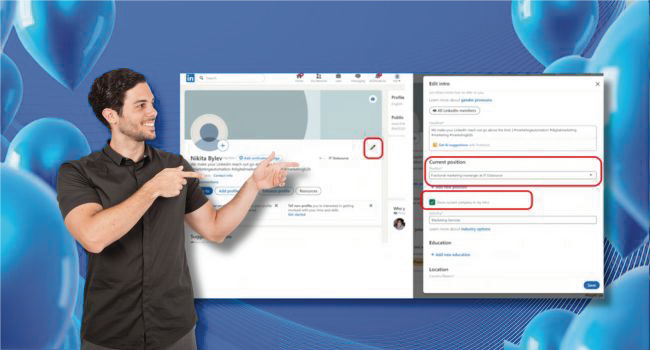
Now it's time to actually add a promotion on LinkedIn on a computer. Follow these simple steps to make your update look professional and grouped under your current employer.
-
Go to your profile. Click your profile photo at the top and choose "View Profile."
-
Scroll to the Experience section. Find your current company entry.
-
Click "+ Add position." This tells LinkedIn you're adding a new role under the same employer instead of replacing the old one.
-
Fill in your new details. Add your new title, start date, and a short description of your achievements.
-
Decide on notifications. Toggle "Notify network" on if you want people to see the change right away, or off if you prefer to announce later.
-
Save your changes. LinkedIn will now group your old and new positions neatly under one company.
Step-by-Step: Adding a Promotion on Mobile
Here, we will cover how to add a promotion on LinkedIn for the same company directly from your phone. The process is almost the same:
-
Open the LinkedIn app. Tap your profile photo and choose "View Profile."
-
Scroll to the Experience section. Find your current role under your company name.
-
Tap "+ Add position." This lets you add your promotion as a new role under the same employer.
-
Enter your new details. Type in your new title, start date, and a quick description of your achievements.
-
Toggle notifications. Turn on "Notify network" if you want your contacts to see the update right away, or leave it off to announce later.
-
Save and review. Make sure the new position appears grouped under your existing company entry.
Edit vs. Add New Entry: A Decision Tree
Sometimes it's tricky to know how to show a role change on your profile. Here's a quick guide to help you decide the best way to display it cleanly:
-
Edit your existing entry if your title changed slightly, but your responsibilities stayed the same. This keeps your timeline simple.
-
Add a new position under the same employer if you moved up to a clearly different role or department. This makes LinkedIn treat it as a promotion.
-
Create a separate entry if you switched to a different company or a spin-off brand. This stops your roles from being grouped incorrectly.
Picture a simple flowchart:
“Did my job title change a little?” → Edit.
“Did my role and responsibilities change a lot?” → Add new position.
“Did I move to a different company?” → Create a new entry.
Will LinkedIn Call It a "Promotion" in the Feed?
After you've updated your profile, you might notice that LinkedIn sometimes labels your change as "Started a new position" instead of showing it as a promotion. This is common and not a mistake on your part.
-
Add a new position under the same company. This is the main signal LinkedIn looks for when deciding how to display your update.
-
Make sure your company name matches exactly. Even a small difference can stop LinkedIn from grouping your roles correctly.
-
Use the "Did you get promoted?" prompt. Sometimes LinkedIn shows this automatically when you edit your title, say yes to get the right label.
-
Time your announcement. Turn off "Share profile updates" while you edit. When everything looks right, switch it back on and post your news.
Announcing It Right: Post Options & "Celebrate an Occasion"
Updating your profile is only half the job. The real reach happens when you share your news as a post. After you finish adding a promotion on LinkedIn, decide how you want to tell your network.
You have two main options:
-
Let the automatic notification work for you. When you toggle "Notify network" on, LinkedIn pushes your update into your connections' feeds.
-
Write your own announcement post. Tap "Start a post," then choose "Celebrate an occasion → New position" to use LinkedIn's built-in template. You can add a photo, thank mentors, or share a quick story about your journey.
👉 If you want more people to see and engage with your post, we offer a service where you can buy LinkedIn followers from real accounts. This can help your promotion post reach a bigger, more relevant audience and spark interactions right from the start.
Adding a personal note, a milestone, or a fun picture from your first day also makes your announcement feel genuine and memorable.
Aftercare Checklist
Once you've learned how to show a promotion on LinkedIn and announced it, take a few more minutes to polish your profile. These small steps can make your promotion shine even more:
-
Update your headline. Add your new title or a short, punchy line that reflects your new responsibilities.
-
Refresh your About section. Include a sentence or two about your current role and what excites you about it.
-
Add new skills or certifications. Show growth by listing fresh abilities you've gained.
-
Feature your announcement post. Pin it to the Featured section so new visitors see your news first.
-
Request recommendations. Ask a colleague or manager to endorse your work in the new role.
-
Check your contact info. Make sure your email and links are up to date so new opportunities can reach you.
These final touches keep your profile up to date and show your promotion as a big step forward rather than just another line on your resume.
FAQs | Frequently Asked Questions
Should I post on LinkedIn about my promotion more than once?
Yes. You can make an initial announcement post and later share an update about a milestone, a new project, or an achievement in your new role. This keeps your network engaged without spamming them.
Can I clean up my network after a promotion?
Absolutely. After announcing your new role, it’s common to tidy up your connections. For example, you can remove a connection on LinkedIn who no longer fits your professional goals. This helps keep your network relevant as you step into a new position.
What’s the best way to handle overlapping roles?
If you held two roles at the same time, add them both with overlapping dates. Use the description to clarify the split in responsibilities. LinkedIn allows multiple active positions at once.
How can I highlight a promotion if my company rebranded or merged?
Create a new entry under the updated company name, then explain the transition briefly in the description. This keeps your career history transparent while linking your old and new positions.
Can I update my promotion on LinkedIn without showing the exact dates?
Yes. When you fill in your new position details, leave the month or year blank or adjust the privacy settings. This lets you display your title without exposing every detail of your timeline.